How to use Veldsong
Tap and hold your phone up. That's it: birds appear as they call.
Everything below is extra, for when you want more.
Before you go
Packing
1 Get ready
- Install Veldsong while you have signal. Everything for the Kruger Park comes with it, so once it's on your phone it works without signal.
- Try it at home. Open Veldsong and tap Try a demo sound to see a bird appear.
Through the day
At the camp fence
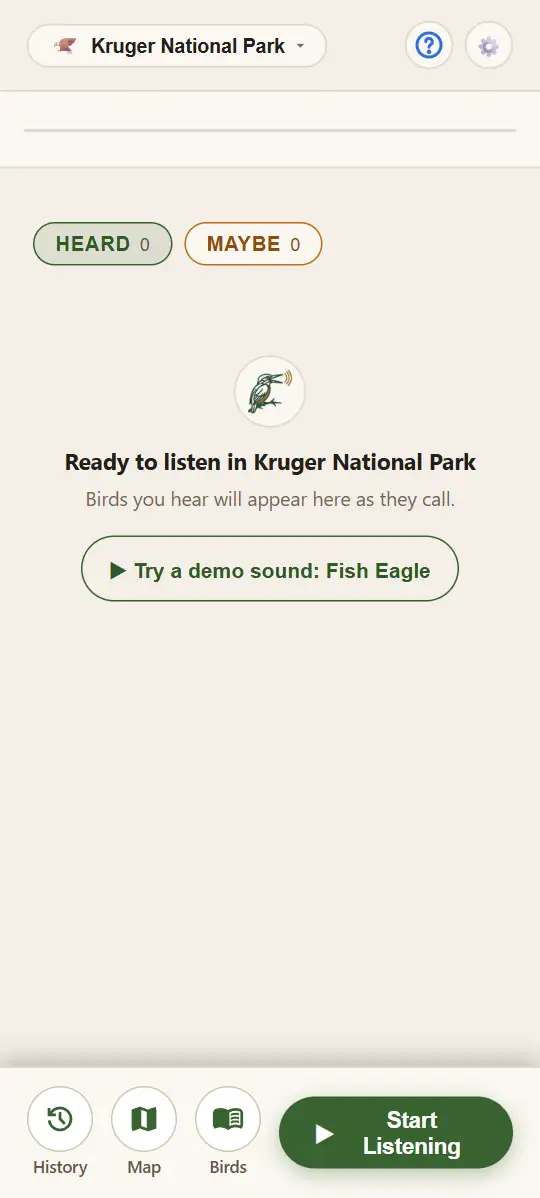
2 Hear your first bird
- Tap Start Listening. The first time, Veldsong asks whether to use your location. Tap Turn on location to see each bird on the map where you heard it, or Listen without location. You can change this later under Location in Settings.
- Allow the microphone. Your phone asks for it once. Location is your choice, but the microphone isn't: it's how Veldsong hears the birds, so it can't work without it.
- Hold the phone up and wait. Each bird appears under Heard a few seconds after it calls, with its name and photo.
- Tap Stop Listening when you're done.
Tip: hold the phone in the open, away from your body. In a car, open the window: Veldsong can't hear birds well through glass. When you pull over, switch off the engine. Veldsong hears far more without its noise.
3 Heard and Maybe
Heard holds the birds Veldsong is sure of. Each card shows how good the match is and how often the bird called.
Maybe holds the birds it isn't sure about. Nothing under Maybe is saved.
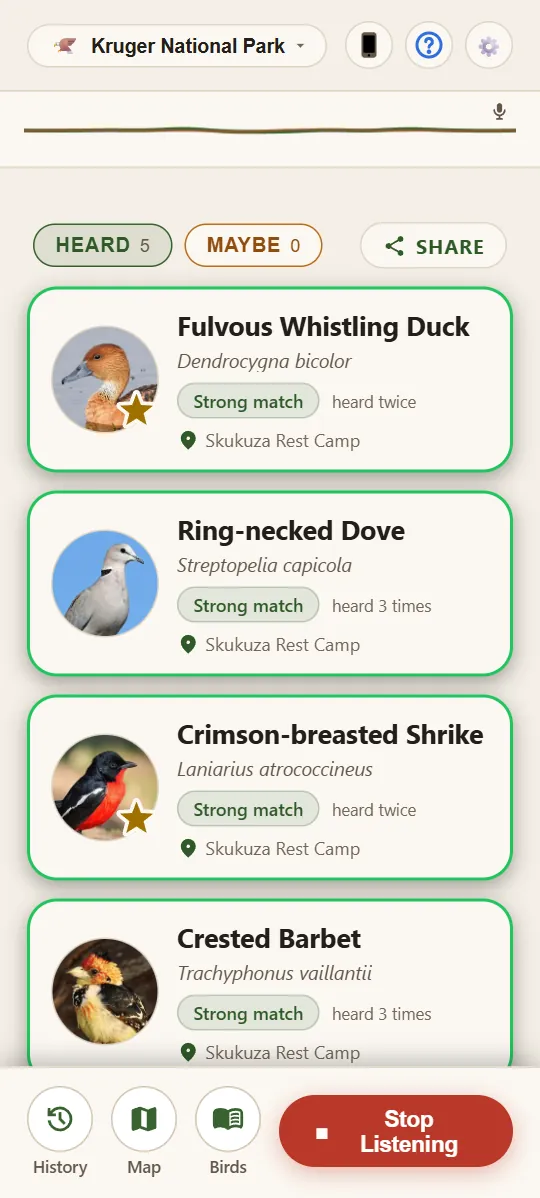
A bird under Maybe moves up to Heard if it calls clearly. Most Maybe birds leave after five minutes if they don't call again. Both lists start empty each time you tap Start Listening.
Birds that sound alike share one card: it names the likeliest, and a smaller line starting with “or” names the others. A gold star marks a very rare bird. A small blue dot means Veldsong found the bird by listening again.
Tired of a bird that keeps coming back? Open its page and tap Ignore this bird, and it leaves your lists. When an ignored bird is heard, a crossed-out eye shows beside Heard and Maybe. Tap the eye to show the ignored birds.
On the morning drive
4 See where you heard them
- Tap Map at the bottom of the Listen screen.
- Tap a numbered pin to zoom in. Tap a photo to see the birds heard there, and tap one to open its page.
- Tap List for every bird on the map, with the time you heard it.
- Tap Today at the top to see another day: Yesterday, Last 7 days or By date.
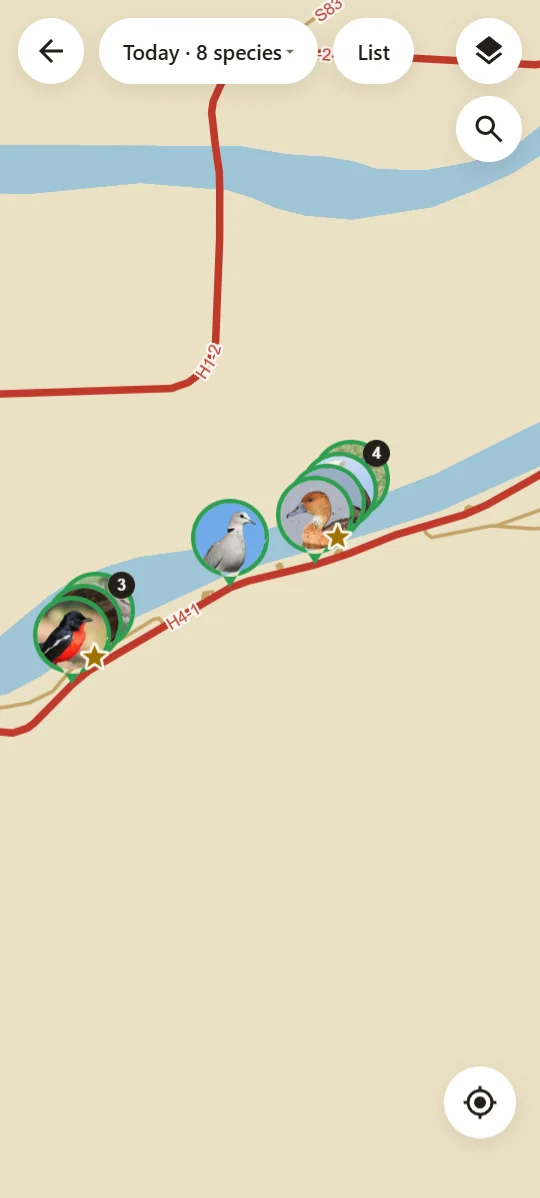
The round button at the bottom right takes you to where you are. To find a place, tap the magnifying glass and type part of its name. The layers button shows or hides roads, camps, picnic spots, rivers and reserves.
In a car, your dot and new birds sit on the road. Walk away from the car and they go exactly where you are. To keep one or the other all the time, pick Always on the road or Always exact (where you are) under Location in Settings.
Phone can't find you? Touch and hold the map where you are. Birds you hear are saved there until you tap Unpin.
At the hide
5 Leave it listening
The longer you listen, the more you hear. Many birds call only now and then.
- Lay your phone on a table in the open, out of the wind.
- Tap Start Listening and leave it.
- After five minutes without a touch, the screen goes black to save your battery. Veldsong keeps listening. Tap twice to wake it.
While Veldsong listens, the round button with a phone on it, at the top, turns the screen black at once.
What was that?
6 Check a bird for yourself
- Tap a bird to open its page. If it has a call, tap the green ▶ on the photo to hear it.
- Tap As heard to hear what Veldsong picked up. Do they sound alike? Enhanced makes a faint call louder so you can hear it. It may make other sounds louder as well, such as wind and background noise: switch it off to hear the sound as it was recorded.
- Not sure? Tap Maybe. Saw it too? Tap Seen.
Changed your mind? Tap Heard. A bird you moved to Maybe comes back with every time it was heard.
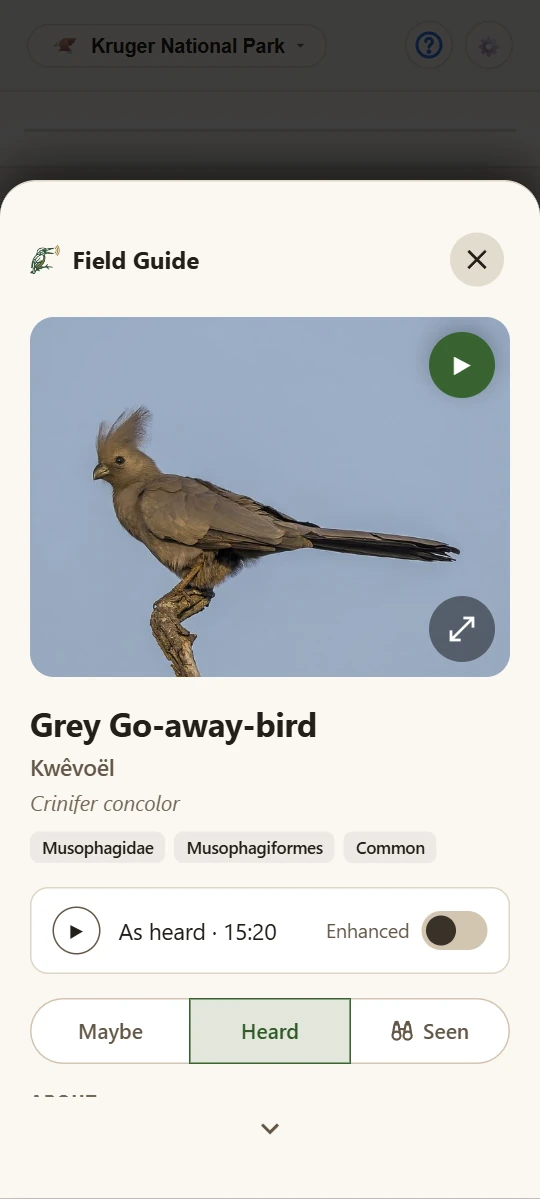
The page also has the bird's names, its family, how common it is and a short description. Remove sighting takes it off your list. Tap Undo straight away to bring it back.
To look up any bird, tap Birds at the bottom of the Listen screen and type part of its name. Veldsong can't name a bird marked “Can't recognise its call yet” by its call, but you can still read about it.
Back at camp
7 Look back at your day
- Tap History at the bottom of the Listen screen.
- Pick Today, Yesterday, Last 7 days or By date.
- Tap Map to see those days' birds where you heard them.
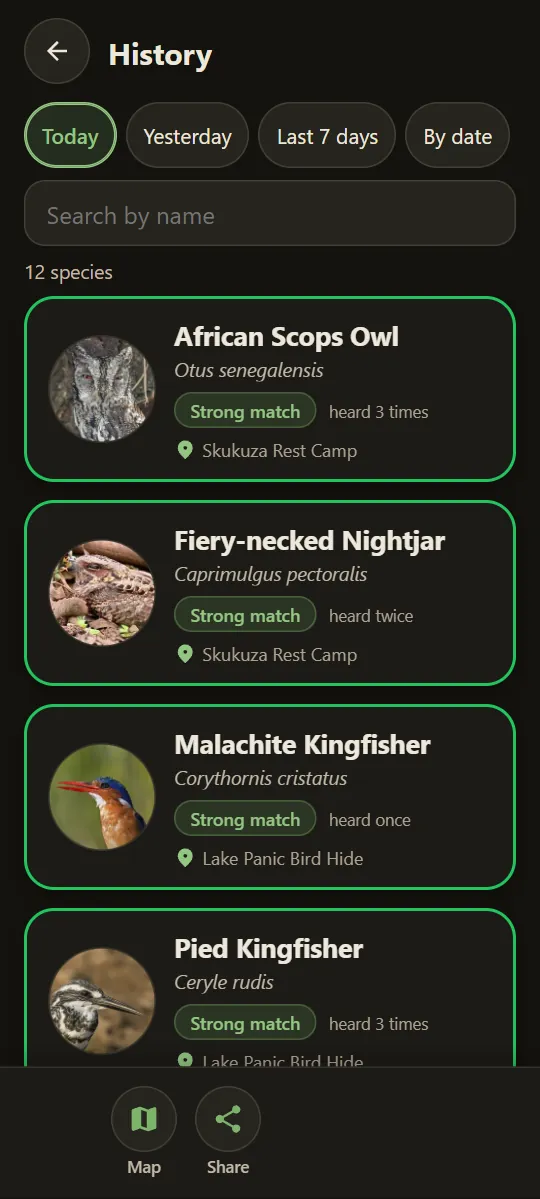
Your sightings stay on this phone. Uninstalling Veldsong deletes them, so back them up before you change phones.
Round the braai
8 Share the day
- In History, tap Share to see your list as it will be sent.
- Tap Share again to pick an app, or Copy list to copy it as text.
- Or tap Share link to send a link: whoever opens it sees your birds with their photos on veldsong.com, no app needed. Handy when a chat drops the pictures. The link holds no location.
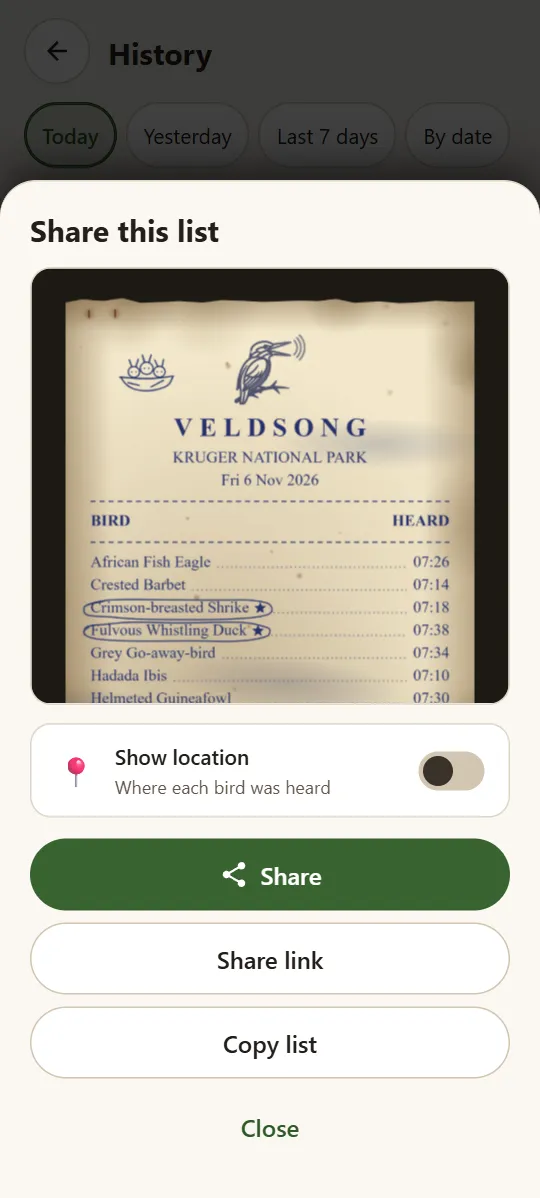
Tap Share beside Heard and Maybe to send the list on the Listen screen. Only birds under Heard are kept and shared.
Lights out
9 Listen through the night
- Before bed, put the phone on its charger by the window or the tent door.
- Tap Start Listening and leave it. The screen goes black, and Veldsong keeps listening.
- In the morning, open History to see who called in the night.
A moon on a bird's page means it's mainly active at night.
Going home
Heading home
10 Move to a new phone
- In Settings, tap Back up and restore, then Back up my sightings. Send the file to yourself by email or a chat app.
- On the new phone, open Back up and restore in Settings, tap Restore sightings and pick the file.
Sightings already on the phone are skipped, and nothing is deleted. Restoring a backup on the phone it came from adds nothing.
Any time
11 Settings
Tap the gear on the Listen screen.
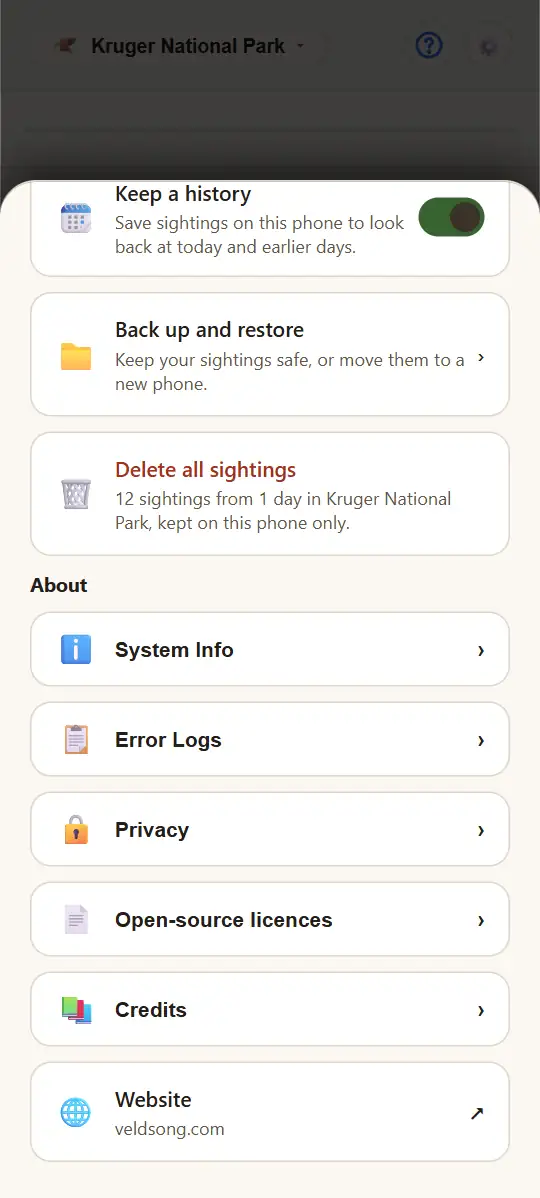
Dark at night switches Veldsong to night colours from dusk to dawn.
Dark screen turns the screen black while you leave it listening.
Listening
- Listen again: when Veldsong isn't sure of a bird, it listens once more with the background noise taken out.
- Two microphones (some phones): when one loud bird drowns out the others, Veldsong listens again without it.
Both use a little more battery and start working the next time you tap Start Listening.
Show scores adds a number beside each card's match word.
Location is Off, Auto, Always on the road or Always exact (where you are).
Keep a history saves your sightings. Turn it off and they last only until you close Veldsong.
Back up and restore moves your sightings to a new phone, as above.
Delete all sightings asks first, and can't be undone.
Under About are System Info, Error Logs, Privacy, Open-source licences, Credits and Website, which opens veldsong.com in your browser.
The ? beside the gear opens this guide, even without signal.
12 When something doesn't work
Veldsong says what went wrong at the top of the Listen screen, and usually what to do. The most common:
No birds at all
Go outside and hold the phone in the open, not behind glass. Tap Try a demo sound to check that Veldsong works, then tap Start Listening again.
“Veldsong is not allowed to use the microphone”
Tap Phone Settings in the message, then Permissions, Microphone, and allow it. Then tap Start Listening again. In a web browser the message says “Microphone access is blocked”: allow the microphone for Veldsong in the browser's settings.
“Veldsong is getting no sound from the microphone”
Close other apps that use the microphone. Check that the phone's own microphone switch isn't off. The message disappears once sound comes back.
“Veldsong can't start listening on this phone”
Tap Try again. If it keeps failing, close Veldsong and open it again.
Birds are saved without a place
Check that Location isn't Off in Settings. Turn on the phone's Location, and allow it for Veldsong under Apps, Veldsong, Permissions. Give it a moment under open sky, or touch and hold the map where you are.
No History button
Keep a history is off in Settings. Turn it on there.
“The file couldn't be read” when you restore
It may still be in Google Drive or iCloud. Download it to the phone first, then tap Restore sightings again.
Listening stopped when you left the app
Veldsong listens only while it's on the screen. On Android 12 and newer it carries on when you come back. On Android 10 and 11, tap Start Listening again.
Something else? In Settings, tap Error Logs, then Copy, and paste it into an email to hello@veldsong.com.